The system stays out of the way
The system looks after your work.
A student's effort should go into the mathematics. It should not be spent on finding the line they wrote twenty minutes ago, on retyping a list they cannot reach, or on recovering an afternoon's work after a laptop lid closed. Everything in this section is in the free edition too.
One search box for six places
One search box searches your own cells, the Functions reference, the Manual, the Data tab, a file you name, and a folder with everything under it. You tick which of the six places to search, and the results list which places were searched as well as what was found. The results panel has a border you can drag to give it more or less room, and it can be pulled out into a window of its own so that it sits beside your work.
None of this needs a mouse: type two characters, press Down to move through the results, and press Enter to go to one.
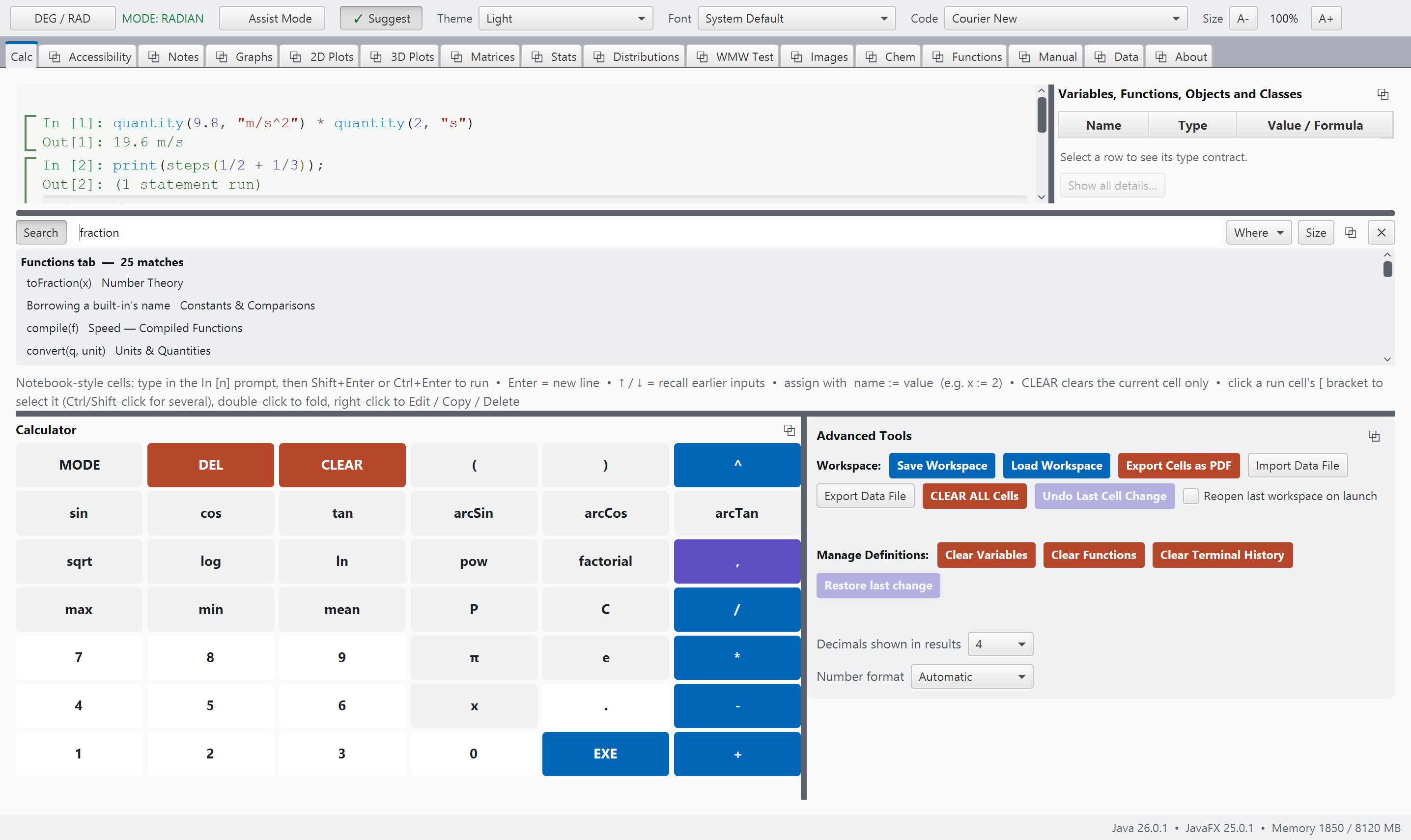
search.pngCalc, the search panel open with results from more than one source. See SCREENSHOT-BRIEF.md, Part B.
Any panel can be moved into a window of its own
A small button in each panel's header (two overlapping squares) opens that panel in a window of its own. This works for the keypad, the Advanced Tools, the list of everything you have defined, the search results, the periodic table's trend plot, and any whole tab. Move the window to the side, or onto a second screen if you have one, and the space it leaves behind is given to the panels next to it.
Close that window and the panel goes back to where it was, at the width it was. In this way, a student who wants to compare a graph with the calculator can see both at once.
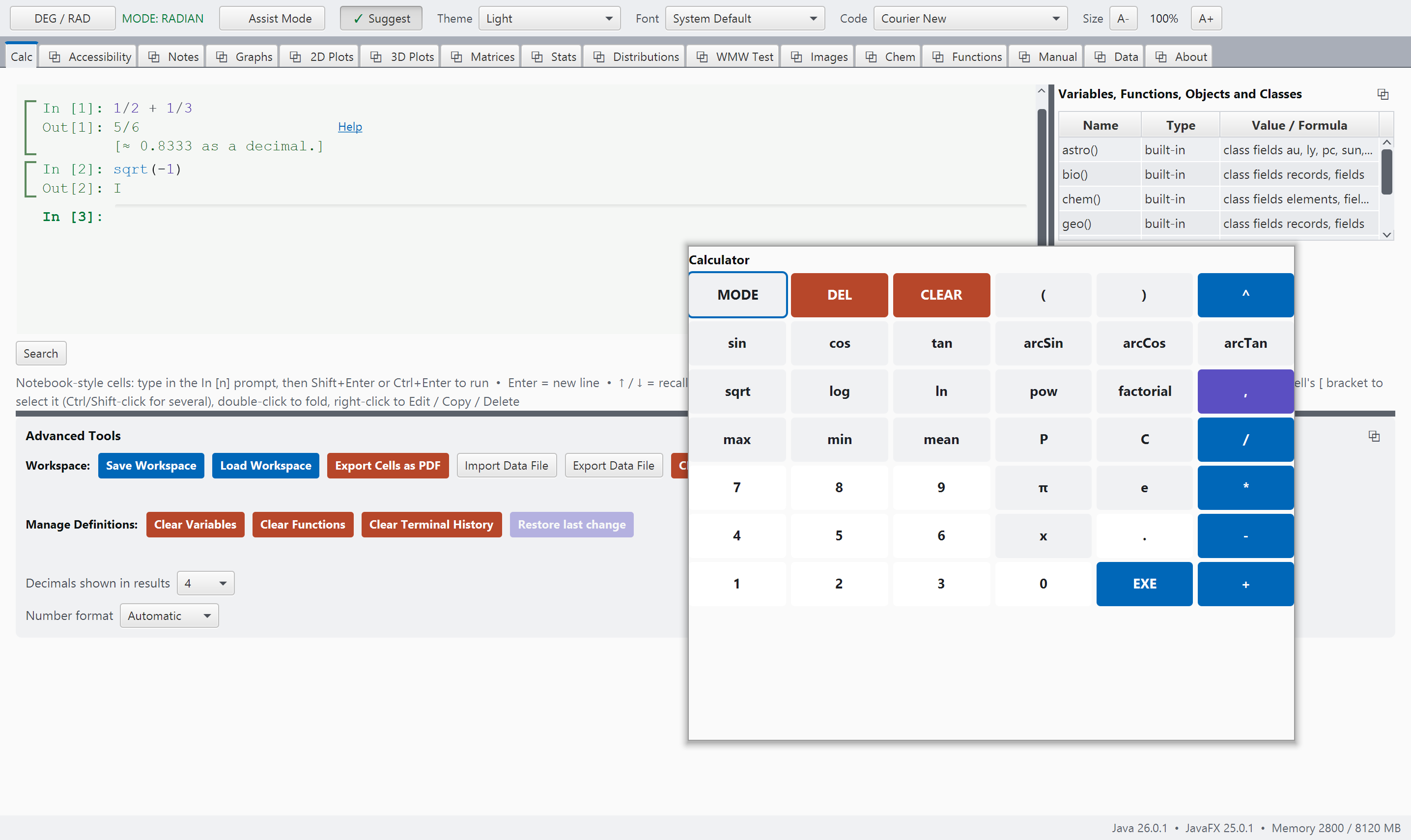
detached.pngA panel pulled out into a window of its own. See SCREENSHOT-BRIEF.md.
If the power goes out
The system keeps a recovery copy of your session and rewrites it as you work. The copy is deleted every time you close the program properly. Therefore, if it is still there when you next start up, the program did not close properly, and you are offered your work back. On a normal day you never see it.
Stop a long calculation
While a cell is running, a Stop button appears beside it. Press it and the cell ends where it stands; what it had already finished stays done, and the rest of your session is untouched.
Rarely, a running cell is still not responsive to Stop five seconds after you press it. Then a Close and Restore button appears beside Stop. It asks first, then closes the app, which ends the cell's unresponsiveness. Open the app again and choose Restore: your session comes back as it was, and the cell that did not stop is back in the input cell, not run.
Reach back without retyping
ans is the previous answer. out(n) is the answer from any cell
still on screen, referred to by the number printed beside it. The answer comes back
whole, so a list is still a list and a matrix is still a matrix.
The list above was cell 3, so out(3) is that list again, with no retyping and no rounding.
A misspelled name gets a suggestion
Type a name that does not exist and the message suggests one that does, e.g., “Did you mean length?” A suggestion is offered only when the suggested name exists, so following it always works.
When the fix is a missing character, the message gives the whole line rewritten.
Multiplication is never implied in this language, so (x+1)(x-1)/(x-1) is
answered with “Missing multiplication sign? Write (x+1)*(x-1)/(x-1) ,
multiplication is never implied here.” The corrected line is there to be typed.
Drag a file onto the window
Drop a file on the program and it is filed in the folder where it belongs, with no dialog to work through. The status line then names the function that opens it, or tells you that there is no built-in opener for that kind of file.
One step back
Restore last change brings back a definition that was overwritten, cleared or deleted by accident, and a cell edit can be undone the same way. If you close the window with work only half entered, the program asks first.
Your work is a file you own
A workspace is saved to your own disk and opens in either edition. Cells can be exported as a PDF, and data comes in and goes out as files. None of it is sent to a server, since there is no server. See the privacy policy.
The editor suggests the name and how to call it
Type two letters and a list of matching names appears, each with its calling form, e.g.,
arcTan2(y, x). In this way, a student learns what a function takes while
typing it. Your own variables and functions are listed first, above the built-in ones.
After a dot, the list narrows to the functions that apply to the value in front of it. The
calling forms come from the same reference the Functions tab prints, so the two never
disagree.
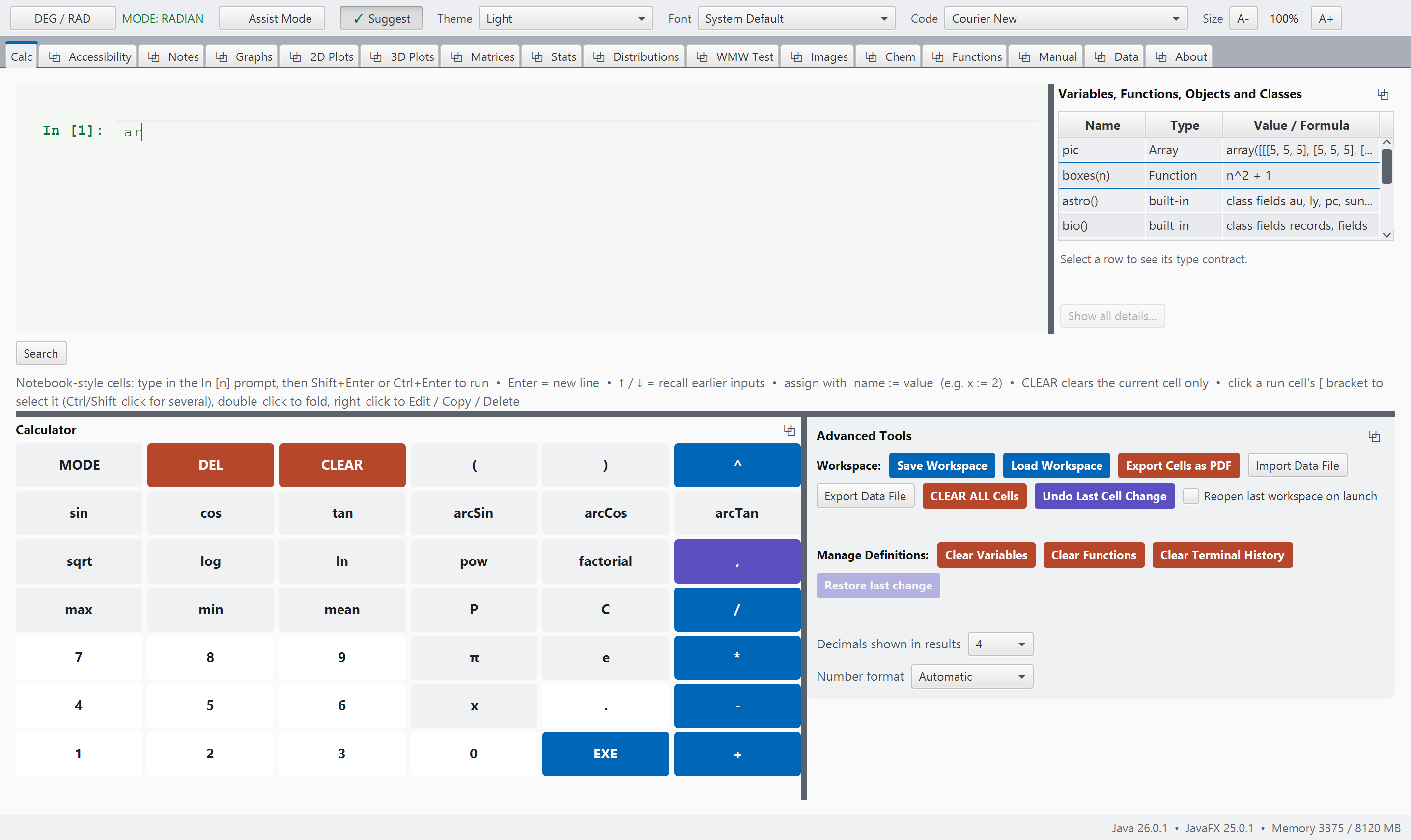
completion.pngThe completion list open mid-expression. See SCREENSHOT-BRIEF.md.
arcCos(x), arcCot(x), arcSec(x). Move through the list with the arrow keys.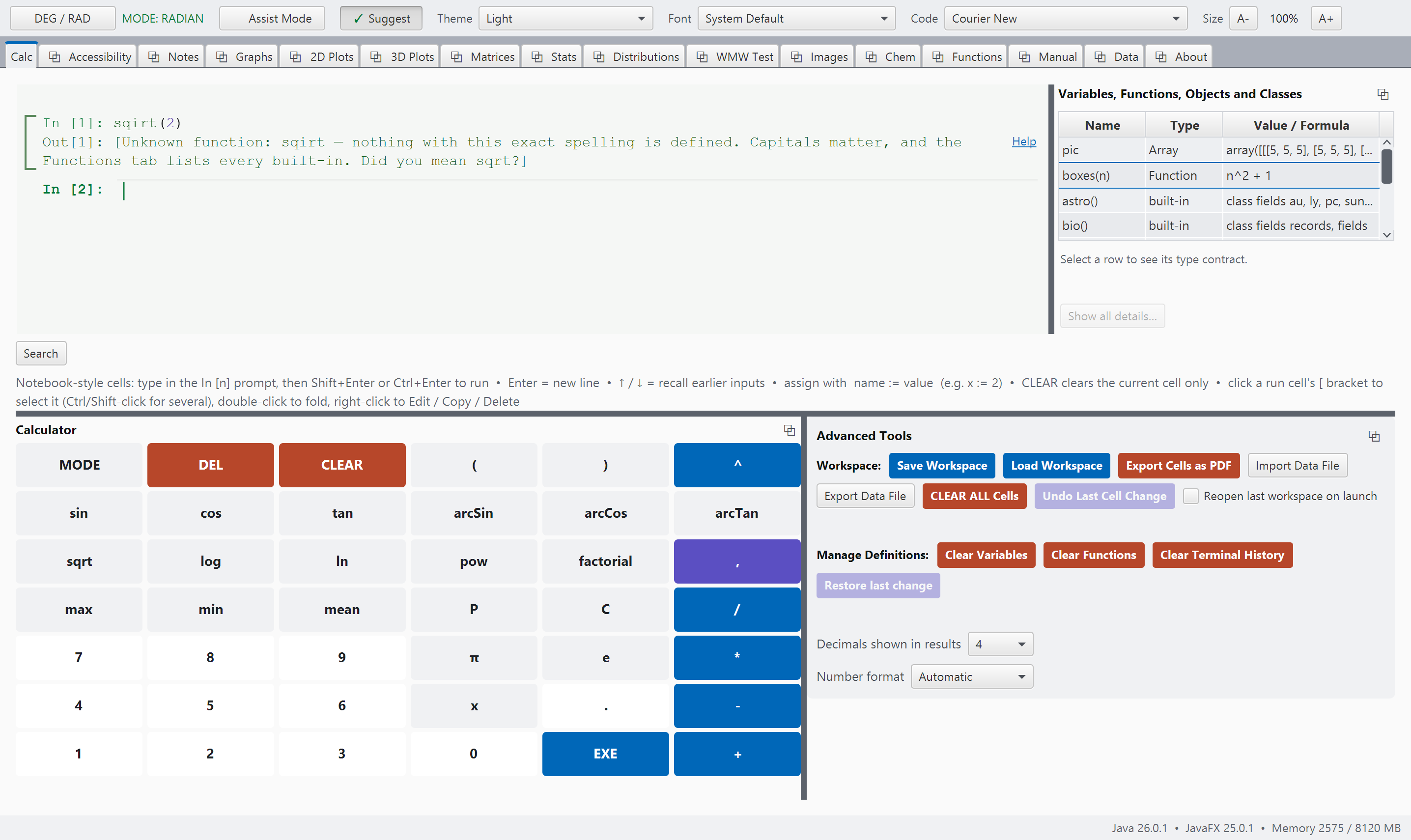
error-help.pngA message with its Help link visible. See SCREENSHOT-BRIEF.md.
Fifteen themes
Four of them are there for color vision differences.
These are not merely decorative choices. They are designed with the same care we would give any other scientific instrument or mathematical tool, because color should help us see the data, not become a barrier to understanding or gaining insight from it.
Three of the palettes are based on the Okabe-Ito color set, with the order of the data colors carefully arranged to remain distinguishable for people with red-green or blue-yellow color-vision deficiencies. A fourth palette removes hue altogether, allowing the data series to be distinguished through differences in lightness alone.
Just as importantly, every one of the fifteen palettes is continuously checked against Web Content Accessibility Guidelines (WCAG) on contrast requirements through automated testing. This means a theme cannot quietly drift into becoming difficult to read. The goal is simple: whether you are exploring a distribution, comparing data, or teaching a statistical concept, the visual design should support your thinking, preserve accessibility, and keep the evidence in the data clear.
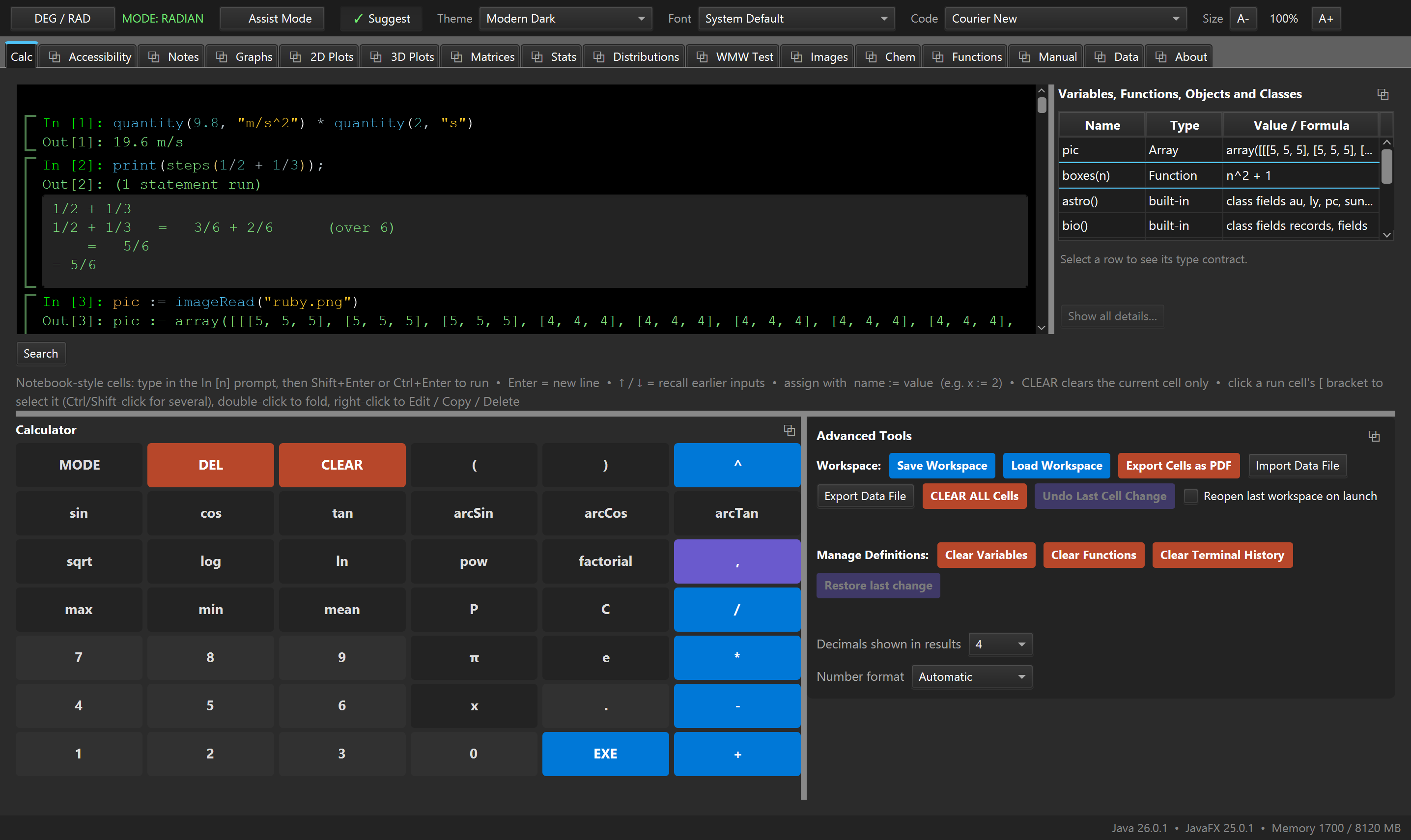
theme-1.png ... theme-5.pngThe same tab, same content, in five themes. See SCREENSHOT-BRIEF.md, Part C.
There are also Protanopia-safe, Tritanopia-safe, Grayscale, Solarized Dark, Solarized Light, Nord, Gruvbox Dark, Tokyo Night, Sepia and Monokai.